
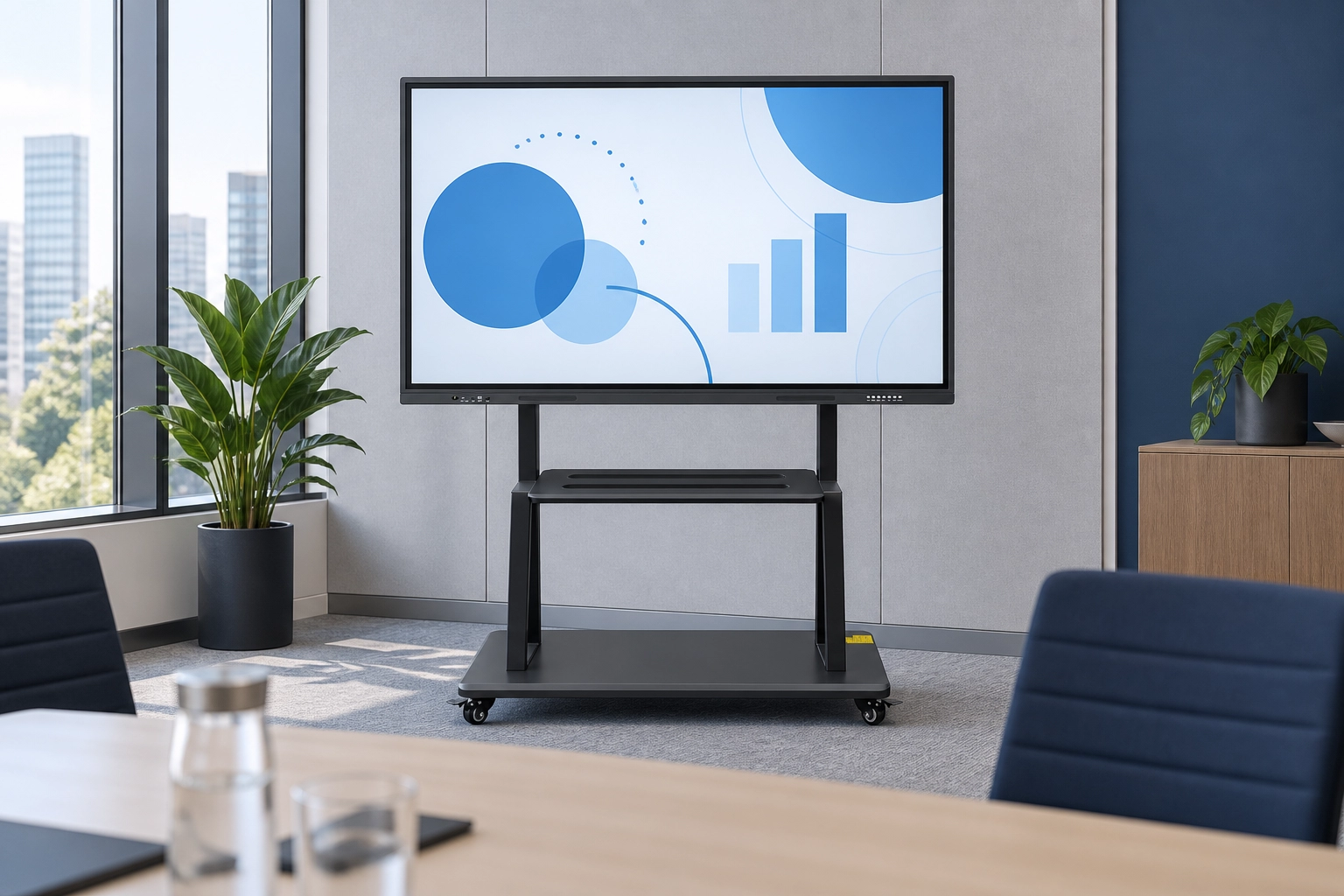
An interactive whiteboard should make everyday meetings easier to run. The best starting point is a list of tasks your team performs: presenting slides, reviewing drawings, annotating documents, sharing a laptop screen, or joining a remote meeting. Use that list to define what a sample must demonstrate before purchasing several units.
1. Check the room before choosing the screen
Measure the available wall or floor space, the farthest seat, and the area where a presenter will stand. Check whether a mobile stand must pass through doorways or move between floors. Photograph the room with its usual lights on and blinds in their normal position.
Display a real presentation and a typical spreadsheet during evaluation. Ask participants in the back seats to read the smallest content. BenQ's meeting-room scenario guide is a useful reference for considering display selection together with room size and working style.
2. Separate required functions from optional features
- Presentation: Which laptops and input connections must work?
- Annotation: Must users write over a presentation, save notes, or export a whiteboard session?
- Collaboration: Will several people write together, or will one presenter control the board?
- Remote meetings: Which conferencing application, camera, microphone, and speaker setup will be used?
- Administration: Who manages accounts, software updates, and shared files?
Mark each item as essential, optional, or unnecessary. This makes it easier to compare configurations without paying for features your team will rarely use.
3. Verify connections with your own devices
Bring the laptops, cables, and adapters that employees actually use. Test both the picture and touch control. Ask which connection carries video, which carries touch data, and whether any driver or application is required. A connector's shape alone does not establish the functions available on a particular model.
If wireless sharing is required, demonstrate it on a network configured like your office network. Include a guest device in the test. Confirm whether wireless accessories, licenses, or administrator permissions are needed.
4. Run a complete meeting on the sample
Use an agenda that includes opening a file, sharing a screen, writing near the display edges, erasing notes, and saving the result. If remote meetings are part of the requirement, invite a colleague from another room to judge sound and picture quality using the proposed equipment.
Finish by signing out and clearing the session. Check how a new user starts a meeting and how the system behaves after a restart. Record any steps that require IT support; these affect training and rollout planning.
5. Confirm what the quotation includes
Ask for a written list covering the display, stand or bracket, computing configuration, pens, cables, conferencing accessories, software, packaging, and support. Request confirmation of warranty scope, spare accessories, and update arrangements. Keep optional equipment separate from the base configuration.
A simple acceptance checklist
- Your normal content is readable from the intended seats.
- Your selected laptops can present and provide the required touch control.
- Notes can be saved in the workflow your team expects.
- Your meeting application and proposed peripherals work together.
- Staff can start, finish, and clear a session without unexpected steps.
Send us your room layout and workflow requirements to discuss available configurations. Confirm all required functions on the exact sample before approving a wider deployment.